Gaming shouldn’t wreck your hands, posture, or budget. Whether you’re on PC or console, a comfortable controller setup can completely change your experience. This guide walks you through the smart tweaks that make a big difference and allows you to game comfortably.
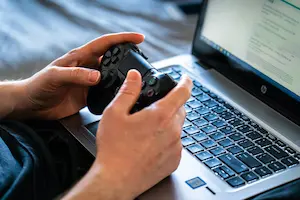
Image: Pexels – Castorlystock
CONTENTS
show
🎮 Step 1: Pick the Right Budget Controller
Choose a controller that fits your hands and gaming style. Look for budget models with responsive buttons, textured grips, and strong Bluetooth connectivity.
🧤 Step 2: Add a Grip or Comfort Accessory
Inexpensive silicone grips or controller shells reduce hand fatigue and improve grip especially during long sessions or sweaty palms. Bonus: they protect your controller too.
💡 Pro Tip: If you’re slouching, add a lumbar pillow or roll up a towel to support your lower back.
🪑 Step 3: Support Your Wrists & Back
Use a lap cushion, low-profile table, or armrest to avoid awkward angles. If you’re gaming at a desk, adjust your chair height so elbows form a 90° angle.
🔌 Step 4: Optimize Button Mapping & Dead Zones
Use your platform’s settings (Steam Input, Xbox Accessories App, DS4Windows, etc.) to remap buttons, adjust triggers, or fine-tune joystick dead zones to reduce strain.
🎧 Step 5: Integrate Audio for Full Comfort
Plug in a lightweight headset directly into your controller or use wireless earbuds to stay free from desk clutter. Prioritize soft ear padding and adjustable headbands.
💡 Extra Tips to Game Comfortably
- Use rechargeable batteries or a long USB-C cable to avoid low battery interruptions
- Store your controller on a stand to keep it safe and accessible
- Enable haptic feedback only for key games to save battery
- Turn on night mode or warm tones to reduce eye fatigue
- Use fingerless gaming gloves if your hands cramp easily
🔗 Related How-To Guides:
🎮 With the right setup, even the cheapest controller can feel premium. Prioritize comfort, tweak your setup, and you’ll enjoy every game without the cramps, clutter, or cost.